eno can drive its full agentic search against a local, open-weight model running on your own hardware. When you do, your PDFs, your queries, and every intermediate step of the agent loop stay on your machine.
This guide walks through the setup end to end: what you’ll need, which models we recommend, how to serve them, and how to point eno at your local server.
In this guide
What you’ll need
- eno 0.8.3 or later. Version is in the lower-left of the Settings panel. Latest build is on the download page.
- A machine that can run the model. Qwen 3.8 27B needs 16–19 GB of VRAM at 4-bit, so it fits on a 24 GB consumer GPU. Gemma 4 31B wants more. CPU-only inference is too slow for the agent loop.
- llama.cpp. eno connects to it through its OpenAI-compatible HTTP API. Other servers we’ve tried are often wrappers around llama.cpp and aren’t always configured correctly, so we recommend running it directly.
Picking a model
We’ve evaluated the current generation of open-weight models against our internal document benchmarks (HR policy, financial filings, technical energy-sector docs). The short list, in the order we’d reach for them:
- Qwen 3.8 27B. Start here. Dense, not MoE, with a 256K context window and room to spare on a 24 GB card.
- Qwen 3.6 27B. The previous generation. Most accurate on multi-step queries of everything we benchmarked before 3.8 landed.
- Qwen 3.6 35B-A3B. The speed pick. Mixture-of-experts (MoE) keeps only a fraction of parameters active per token, so it’s faster than a dense model of similar size. The trade-off is some accuracy, true of all MoE models. Qwen 3.8 has no equivalent at this size.
- Qwen 3.5 27B. Worse than 3.6 on multi-step reasoning. Still works.
- Gemma 4 31B. Works, but hungry. On our consumer rig, memory and GPU pegged and Windows killed the server after about a dozen queries. Try it on something beefier.
- Gemma 4 26B-A4B. Intermittent. The MoE struggles to format tool calls, which surfaces as errors mid-search.
Qwen 3.8’s flagship, Qwen3.8-2.4T-A95B, wants roughly 400 GB at its smallest 1-bit quant. Not a consumer-hardware model. This guide doesn’t cover it.
A note on vision: eno’s agentic search doesn’t need an image stack on the model. On the older Qwen releases you could skip the vision weights and spend that VRAM on a smarter text-only variant. Qwen 3.8 27B builds vision into the model, so there’s no separate projector file to leave out.
Where to get models
We pull our quantized weights from Unsloth. They publish up-to-date GGUFs of the major open-weight releases on Hugging Face, usually within a day or two of the model dropping, and their UD (Unsloth Dynamic) quantizations have held up well in our evals.
The command below uses unsloth/Qwen3.8-27B-GGUF at a UD-Q4_K_XL quant. Swap in Qwen3.6-35B-A3B-GGUF for the faster MoE, or step down to a smaller model if you’re tight on memory.
We don’t recommend going below 4-bit. Going higher improves output quality at the cost of more VRAM, so pick the highest quant that still fits on your GPU.
Use llama-cli to download models directly from Hugging Face:
llama-cli -hf unsloth/Qwen3.8-27B-GGUF:UD-Q4_K_XL
The download lands at %USERPROFILE%\.cache\huggingface\hub\models--unsloth--Qwen3.8-27B-GGUF\snapshots\<revision>\Qwen3.8-27B-UD-Q4_K_XL.gguf, where <revision> is the Hugging Face commit hash for that snapshot.
Running llama.cpp
The exact command we run on Windows is:
llama-server.exe ^
  -m %USERPROFILE%\.cache\huggingface\hub\models--unsloth--Qwen3.8-27B-GGUF\snapshots\<revision>\Qwen3.8-27B-UD-Q4_K_XL.gguf ^
  --port 8080 ^
  -ngl 99 ^
  --temp 1.0 --top-p 0.95 --top-k 20 --min-p 0.0 ^
  --presence-penalty 0.0
A few flags worth calling out:
-ngl 99offloads all layers to the GPU. Drop the number to spill into system RAM if you’re tight on VRAM.- The sampler settings (
--temp,--top-p,--top-k,--min-p,--presence-penalty) are Unsloth’s values for Qwen 3.8 in thinking mode, which is what the agent loop wants. The instruct profile is a different set (--temp 0.7 --top-p 0.80 --presence-penalty 1.5). Don’t mix the two. Follow the Unsloth model card for whatever you run. The wrong values noticeably degrade output.
Check the device line in the server’s startup output. You’re looking for something like:
llama_model_load_from_file_impl: using device CUDA0 (NVIDIA GeForce RTX 5090) - 31412 MiB free
If it instead reads using device Vulkan0 ..., llama.cpp has fallen back to its Vulkan backend. On NVIDIA hardware that’s dramatically slower than CUDA and the agent loop will crawl. Grab the matching cudart archive from the same llama.cpp releases page as the server build, extract the DLLs next to llama-server.exe, and restart. The device line should switch to CUDA0.
Once the server is running, you should be able to hit http://localhost:8080/v1/models in a browser and see the model listed. That’s the URL eno will connect to.
Enabling local models in eno
With your server running, the rest of the setup is in eno itself.
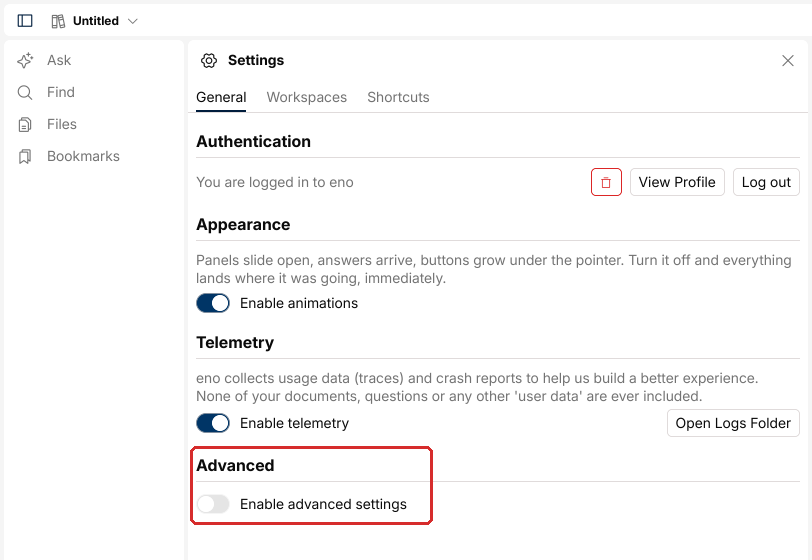
Step 1. Open Settings and enable advanced settings
Open Settings from the bottom of the rail. On the General tab, scroll to Advanced at the bottom and turn Enable advanced settings on. That unlocks the Local AI tab.
Step 2. Open the Local AI tab and fill in the fields
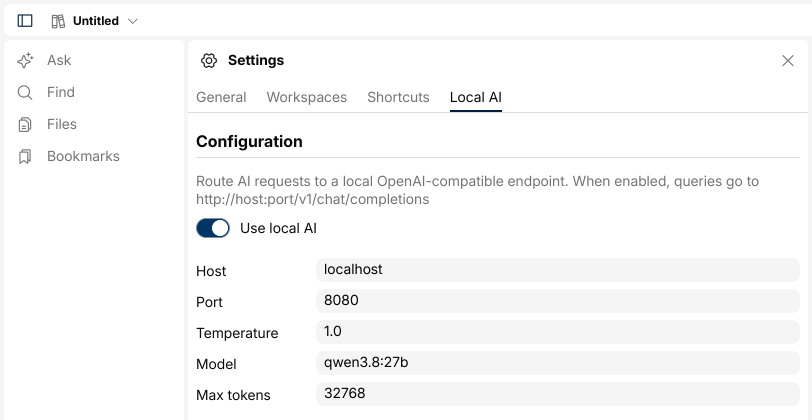
A Local AI tab appears in the row of tabs across the top of the panel. Open it and turn Use local AI on. eno builds the endpoint as http://host:port/v1/chat/completions from the values below, so most of this is just splitting your server’s address into the right boxes:
- Host:
localhostor127.0.0.1if your server is on the same machine. - Port:
8080for the llama.cpp command above. - Temperature: use the value from the Unsloth model card (
1.0for Qwen 3.8 in thinking mode). - Model: the model name your server reports. Leave at the default for llama.cpp.
- Max tokens: default is fine; bump it if answers get cut off.
Fields save when you click away from them. There’s no Save button.
Close Settings and run a search. You should see your local model take over the agent loop. If it doesn’t, jump to Troubleshooting below.
Troubleshooting
Searches fail immediately. Usually a connection problem. Confirm Host and Port match where your server is listening and that http://host:port/v1/models loads in a browser. If the server is on another machine, check the firewall.
Searches start but never finish. The model is emitting tool calls that don’t parse, so the agent loop keeps round-tripping until they do. More common on smaller models; try a larger one from the list above.
Tool calls show up inside the model’s reasoning. Older quants had a bug where tool-call tokens leaked into the thinking stream, which breaks the agent loop. Unsloth fixed this in newer GGUFs, so pull fresh quants instead of reusing old files.
Highlights in the PDF window look wrong. Some local models break the formatting we use to mark matched keywords. Usually a smaller or older model. The Qwen line is the most reliable.
Inference is unusably slow. Two common causes. First, llama.cpp may be running on the Vulkan backend instead of CUDA. See the device-line check in Running an inference server. Second, you may be spilling layers to system RAM; drop to a smaller quant or a model that fits fully on the GPU.
Still stuck?
Email support@enopdf.com with your eno version, the model and server you’re running, and a screenshot of the error if you have one. You can also drop into our Discord, where the team is around most days. We love hearing which local setups work for people.